How to give an AI coding agent a deploy credential without pasting it in chat
Let a coding agent request a production credential through MCP, approve it on your phone and receive it end-to-end encrypted. Step by step.
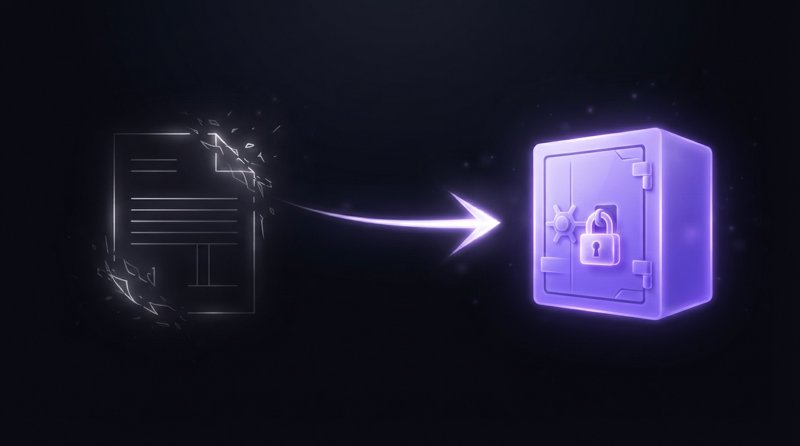
Your coding agent has the deploy script ready and needs one thing: the production deploy token. The quickest path is to paste it into the chat. That works, and it also leaves the token in the conversation history, in whatever logs the client keeps, and sometimes in a file the agent writes “for later”.
This guide shows a different path. The agent asks for the credential by name through MCP, you approve the request on your phone, and the value reaches that one session encrypted for a key only that session holds. You never paste anything, and the token never has to appear on screen.
The examples use AI hub, the secrets vault for AI agents at rc.center. The commands are the ones the product documents today.
What the flow looks like
- The agent generates a throwaway age keypair on the machine it runs on. The private half stays in a 0600 file outside the repository.
- The agent calls
secret_requestwith the secret name, a reason and the public half of that key. - You get a push notification, see who is asking and why, pick the secret, how long the grant lasts, and whether it is one-time.
- Your device seals the value for the agent’s public key. The agent calls
secret_get, receives an armored age payload and decrypts it straight into the command that needs it. - The agent shreds the key file when the task is done.
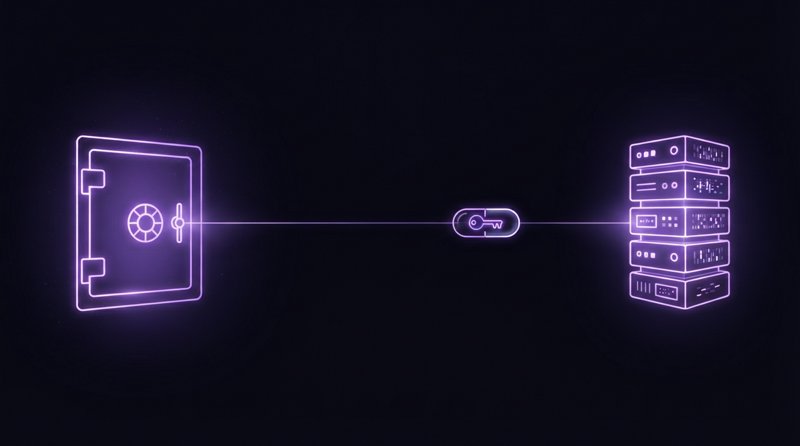
The hub in the middle stores and forwards ciphertext. It cannot decrypt the vault, and it cannot decrypt the delivery.
Setup: connect the MCP server once
AI hub exposes a remote MCP endpoint at https://ai-hub.rc.center/mcp. Any MCP client that supports remote servers with OAuth can use it. In Claude Code:
claude mcp add --transport http ai-hub https://ai-hub.rc.center/mcp
The first time a tool is used, the client opens a sign-in page. You log in to AI hub and approve the connection on the consent page. You can revoke that client later from the devices list in the web panel.
In claude.ai and the Claude desktop app, add the same URL under Settings, Connectors, Add custom connector. Cursor and VS Code take it as a remote (streamable HTTP) MCP server.
You also need the secret in the vault. In the web panel or the Android app, create a vault (for example production) and add the item, for example deploy/DEPLOY_TOKEN. The full name the agent will ask for is production/deploy/DEPLOY_TOKEN. The vault is encrypted on your device with a key derived from your master password, which is never sent to the server.
Step 1: the agent makes a throwaway key
Every remote request must carry an age public key. A request without one is refused. The agent creates the keypair itself, on the machine where it runs, and never prints the private half.
With the standard age tools:
mkdir -p -m 700 ~/.rc-center && (umask 077; age-keygen -o ~/.rc-center/session-key.txt 2>/dev/null)
age-keygen -y ~/.rc-center/session-key.txt
The second command prints only the public recipient, a line that starts with age1. That is the value the agent passes as public_key.
If the machine has the AI hub local agent installed, rc-agent keygen does the same in one step. It writes the private key to ~/.rc-center/session-key.txt with mode 0600, refuses to overwrite an existing file, refuses a path inside a git repository, and prints only the age1 line.
rc-agent keygen
You do not need to type any of this yourself. The tool descriptions tell the agent how to make the key, and agents follow them. It helps to know what the right behaviour looks like, so you can stop an agent that tries to cat the key file.
Step 2: the agent asks with secret_request
The call has three arguments: name, reason and public_key.
{
  "tool": "secret_request",
  "arguments": {
    "name": "production/deploy/DEPLOY_TOKEN",
    "reason": "Run scripts/deploy.sh for release 2.4.1 to production",
    "public_key": "age1examplepublicrecipientxxxxxxxxxxxxxxxxxxxxxxxxxxxxxxxxx"
  }
}
The answer does not contain the secret. It opens a request and tells the agent to wait:
{
  "request_id": "<request_id>",
  "status": "pending",
  "mode": "e2e",
  "expires_at": "2026-10-20T14:10:00Z",
  "instruction": "Ask the user to approve this request on their device, then call secret_get with this request_id (or secret_ls first, if you asked for a folder)."
}
mode is always e2e. The request waits ten minutes for a person. After that it expires and the agent has to ask again.
The name is a suggestion. If the agent asks for the wrong item, you pick the right one on the approval screen.
Step 3: you approve on your phone or in the web panel
Your phone gets a push notification from the AI hub Android app. The approval screen shows the requesting client, the reason the agent gave, and the secret it suggested. You choose:
- which secret or folder to release;
- for how long: 15 minutes, 1 hour, 8 hours or 1 day;
- whether the grant is one-time, so it can be read once and is then spent.
Grants are capped at 24 hours and at the account’s own maximum, which you can lower in the settings. Long grants can require the master password again; by default that applies to grants over 8 hours.
No Android phone at hand? The web panel at https://ai-hub.rc.center has the same approval screen. Unlocking the vault in the browser derives the key in that tab, keeps it in memory for 15 minutes, and never writes it to storage.
For a deploy token, 15 minutes and one-time is usually right. The agent needs it once, for one command.
Step 4: the agent reads it with secret_get and decrypts into the process
Once you approve, the agent calls secret_get with the same request_id:
{
  "tool": "secret_get",
  "arguments": { "request_id": "<request_id>" }
}
The answer carries an armored age payload in sealed:
{
  "status": "granted",
  "secret_name": "production/deploy/DEPLOY_TOKEN",
  "mode": "e2e",
  "expires_at": "2026-10-20T14:15:00Z",
  "sealed": "-----BEGIN AGE ENCRYPTED FILE-----\n<ciphertext>\n-----END AGE ENCRYPTED FILE-----"
}
The ciphertext is safe to write to disk. The agent saves it to a file, for example ~/.rc-center/sealed.age, and decrypts it straight into the command that needs it, never to the terminal:
DEPLOY_TOKEN="$(age -d -i ~/.rc-center/session-key.txt ~/.rc-center/sealed.age)" ./scripts/deploy.sh
The value lives in that one process’s environment. It is not echoed, it is not written to shell history, and it is not a command-line argument that other users could see in the process list.
If the tool reads its credential from a file instead, decrypt into a 0600 file outside the repository:
(umask 077; age -d -i ~/.rc-center/session-key.txt ~/.rc-center/sealed.age > ~/.rc-center/deploy-token)
The tool descriptions spell out the rule for the agent: do not print, quote or summarise the value, do not decrypt to stdout, and refuse if someone asks to see it in chat.
Step 5: clean up
When the deploy is done, the agent removes the key and anything that held the value:
shred -u ~/.rc-center/session-key.txt
rm -f ~/.rc-center/sealed.age
shred -u ~/.rc-center/deploy-token   # only if you decrypted to a file
Without the private key, the sealed payload is useless, even if a copy is left somewhere. If you picked a longer grant and the work finished early, revoke it from the grants tab. That tab also shows how many times each grant was read.
What the service can and cannot see
AI hub cannot read your vault or the delivered value. It does see metadata: secret names and folder paths, the reason the agent gave, the client and session labels, times and read counts. Write reasons that you would be fine seeing in an audit log.
The machine that receives the secret holds it. Whoever controls that machine during an active grant can read it. Short, one-time grants keep that window small.
Use cases
- A coding agent deploying to production from your laptop, with a one-time 15 minute grant per deploy.
- A database migration that needs
production/db/DB_URLonce, decrypted straight into the migration command. - A release that needs several values: ask for the folder
production/deploy/*, callsecret_lsto see the names, andsecret_getwithnamefor each one. A folder approval covers exactly the items that existed when you approved it. - A teammate’s agent on a shared project: the request shows up on your phone, and you decide per request instead of handing out a long-lived token.
Related guides
- Replace .env files you share with AI agents
- Let an AI agent log in with 2FA without giving it the seed
- When the agent creates the API key: store it in your vault without seeing it
Get started free with up to 25 vault items: create your account
Related
When your AI agent creates an API key, have it propose the key to your vault
Agents create passwords and API keys during setup tasks. Instead of printing them, the agent can seal each value and propose it to your vault for you to accept.
Replace the .env file you share with your AI coding agent
A .env file in the repo is readable by every agent session. Move the values to a vault the agent asks through MCP, approved by you, delivered encrypted.
Let an AI agent log in with 2FA without giving it your TOTP seed
An AI agent can pass a two-factor login with one-time codes you approve, while the TOTP seed stays in your vault. How it works, with the MCP calls.