Let an AI agent log in with 2FA without giving it your TOTP seed
An AI agent can pass a two-factor login with one-time codes you approve, while the TOTP seed stays in your vault. How it works, with the MCP calls.
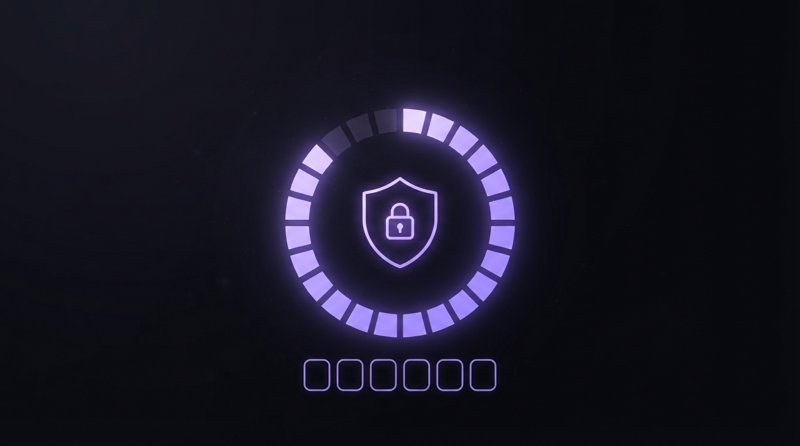
Your agent is driving a login: a dashboard, an admin panel, a provider console. It types the username, the password, and then the page asks for a six-digit code from your authenticator app. The agent stops, and you either read the code off your phone and paste it in, or you start thinking about worse ideas.
The bad options
Turning 2FA off for the account the agent uses removes the protection for everyone, including whoever finds that password next.
Giving the agent the TOTP seed (the otpauth:// URI behind the QR code) is worse than it looks. The seed is not a code. Anyone holding it can generate valid codes forever, and once it has been in a conversation you cannot take it back without re-enrolling the account.
What the agent needs is one code, at the moment it types it, and nothing that outlives the login.
How AI hub releases codes instead of the seed
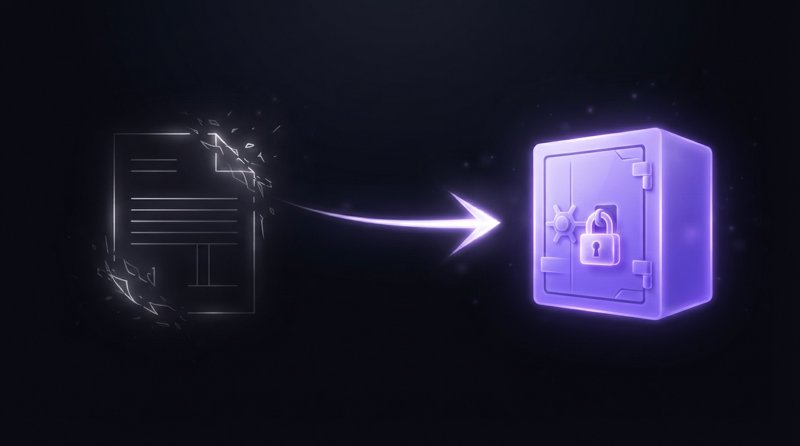
AI hub stores the TOTP seed in your end-to-end encrypted vault. When an agent asks for it and you approve, your device does not send the seed. It computes the codes for the next five minutes, one per 30-second window, seals each code separately for the agent’s session key, and uploads that grid.
Each secret_get then returns the single code valid at that instant, with kind: "totp" and a valid_until timestamp. The seed never leaves your device, and the service never sees a code.
A TOTP grant lasts exactly five minutes and cannot be extended. The next login is a new approval.
Setup: store the TOTP secret in the vault
When you enable 2FA on the account, the site shows a QR code and usually a “can’t scan?” link with the setup key. Store the otpauth://totp/ URI as an item in your vault, for example ops/console/TOTP. You can keep enrolling your own authenticator app with the same QR code, so you still have codes on your phone.
Connect the MCP server once if you have not already. In Claude Code:
claude mcp add --transport http ai-hub https://ai-hub.rc.center/mcp
Other clients with remote MCP and OAuth support (claude.ai custom connectors, Cursor, VS Code) take the same URL: https://ai-hub.rc.center/mcp.
Step by step
1. The agent makes a session key
TOTP codes are only released end to end. A request without a public key cannot be approved for a TOTP secret.
mkdir -p -m 700 ~/.rc-center && (umask 077; age-keygen -o ~/.rc-center/session-key.txt 2>/dev/null)
age-keygen -y ~/.rc-center/session-key.txt
The second line prints only the age1 recipient. With the AI hub local agent installed, rc-agent keygen does both steps and prints only the recipient.
2. The agent asks right before the 2FA step
{
  "tool": "secret_request",
  "arguments": {
    "name": "ops/console/TOTP",
    "reason": "Log in to the ops console to rotate the webhook URL",
    "public_key": "age1examplepublicrecipientxxxxxxxxxxxxxxxxxxxxxxxxxxxxxxxxx"
  }
}
The answer is a request_id with status: "pending" and mode: "e2e". The request waits ten minutes for you.
Timing matters here. The five minutes start at approval, so the agent should ask when it is about to reach the code prompt, not at the start of a long task.
3. You approve
The push notification opens the request in the AI hub Android app, or you open it in the web panel. For a TOTP secret the screen says it will release five minutes of one-time codes. There is no lifetime to choose.
4. The agent gets one code and uses it
{
  "tool": "secret_get",
  "arguments": { "request_id": "<request_id>" }
}
{
  "status": "granted",
  "secret_name": "ops/console/TOTP",
  "mode": "e2e",
  "kind": "totp",
  "valid_until": "2026-10-20T14:03:30Z",
  "expires_at": "2026-10-20T14:07:00Z",
  "sealed": "-----BEGIN AGE ENCRYPTED FILE-----\n<ciphertext>\n-----END AGE ENCRYPTED FILE-----"
}
valid_until is the end of this code’s 30-second window. expires_at is the end of the five-minute grant.
The agent saves sealed to a file and decrypts it straight into wherever the code goes. For a command-line tool that reads the code from stdin:
age -d -i ~/.rc-center/session-key.txt ~/.rc-center/code.age | ./scripts/console-login --otp-stdin
./scripts/console-login --otp-stdin stands for your own login tool. For an agent filling a web form, the code goes into the field the same way a person would type it.
5. Clean up
shred -u ~/.rc-center/session-key.txt
rm -f ~/.rc-center/code.age
When the login fails or the code expires
The agent calls secret_get again with the same request_id. Each call returns the code valid right then. Asking again is expected and costs nothing, as long as it is within the five minutes. After that, secret_get reports that the request is expired, and the agent needs a new secret_request.
The agent should never store a code to reuse it, and never ask you for the seed. Both rules are in the tool descriptions the agent reads.
TOTP secrets inside a folder
A folder can hold two-factor secrets next to plain ones. Say ops/console/* holds USER, PASSWORD and TOTP. The agent asks for the folder, then lists it:
{ "tool": "secret_ls", "arguments": { "request_id": "<request_id>" } }
{
  "status": "granted",
  "approved": "ops/console/*",
  "names": ["ops/console/PASSWORD", "ops/console/TOTP", "ops/console/USER"],
  "items": [
    { "name": "ops/console/PASSWORD", "expires_at": "2026-10-20T15:02:00Z" },
    { "name": "ops/console/TOTP", "kind": "totp", "expires_at": "2026-10-20T14:07:00Z" },
    { "name": "ops/console/USER", "expires_at": "2026-10-20T15:02:00Z" }
  ]
}
The plain items follow the lifetime you picked. The totp item answers with the current code and lives five minutes, even if the rest of the folder lives longer. The agent reads each one with secret_get and the name argument.
Limits worth knowing
- The agent needs a shell with
age(orrc-agent) on the machine where it runs. That fits coding agents and browser agents driven from a terminal. - A code typed into a web form passes through the agent’s tool call. That is a 30-second, single-use code, not the seed, which is the trade this design makes.
- Some sites rate-limit failed codes. If the agent fails twice, have it stop and tell you instead of looping.
Use cases
- An agent logging in to a provider console to change a setting during an incident, with you approving from your phone.
- End-to-end tests that log in to a staging account protected by 2FA, without disabling 2FA on staging.
- A browser agent filing a form behind a company SSO portal that asks for a code at every login.
Related guides
- Give an AI coding agent a deploy credential without pasting it in chat
- Replace .env files you share with AI agents
Try it free with up to 25 vault items: create your account
Related
When your AI agent creates an API key, have it propose the key to your vault
Agents create passwords and API keys during setup tasks. Instead of printing them, the agent can seal each value and propose it to your vault for you to accept.
Replace the .env file you share with your AI coding agent
A .env file in the repo is readable by every agent session. Move the values to a vault the agent asks through MCP, approved by you, delivered encrypted.
How to give an AI coding agent a deploy credential without pasting it in chat
Let a coding agent request a production credential through MCP, approve it on your phone and receive it end-to-end encrypted. Step by step.